Try Punch-in in the live demo environment
The demo is a real Punch-in environment that you can explore for free, without signing up. Follow the steps below to log in, add a few test employees, and clock them in with face recognition from an Android tablet or phone.
Before you start: the demo is shared
- Anyone can use this environment, so only enter data that you are happy to make public. Please do not use real employee names, photos or contact details.
- Anyone else can see, change or delete the data you enter.
- The database is reset every night, so nothing you add is kept.
1Log in and find your tools
Go to punch-in.co.uk and log in with these demo credentials:
| test@example.com | |
| Password | Muffin99 |
Your profile page lists the web addresses of the demo tools, and shows the QR code that configures the mobile app in step 4. The same email and password also work in the back office.
- Back office (for managers): demoenv-admin.punch-in.co.uk. The admin console where you create users, approve timesheets, manage shifts, and block or terminate users.
- Employee self-service portal (for staff): demoenv-user.punch-in.co.uk. Where employees request time off, update tasks, add job descriptions, and where managers approve timesheets.
2Create some test employees in the back office
Open the back office and go to the HR module to add employees. You can:
- add them one at a time with the new employee form, or
- import several at once from an Excel spreadsheet, using the template provided in the back office.
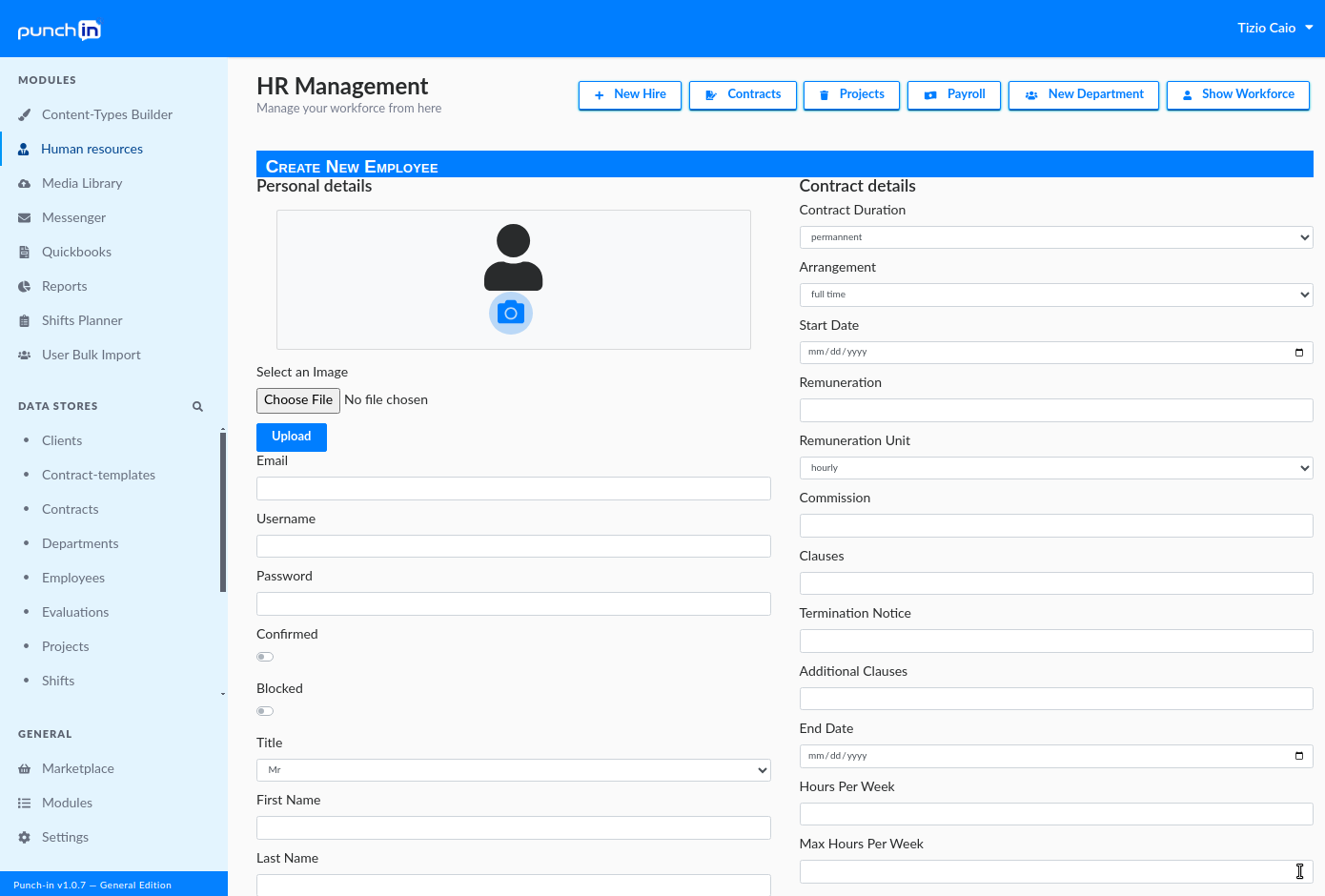
Add a profile picture for every employee you want to recognise by face. Use a clear, front-facing photo, like a passport picture. Remember, this is a public demo, so use a photo of yourself or a colleague who has agreed to it.
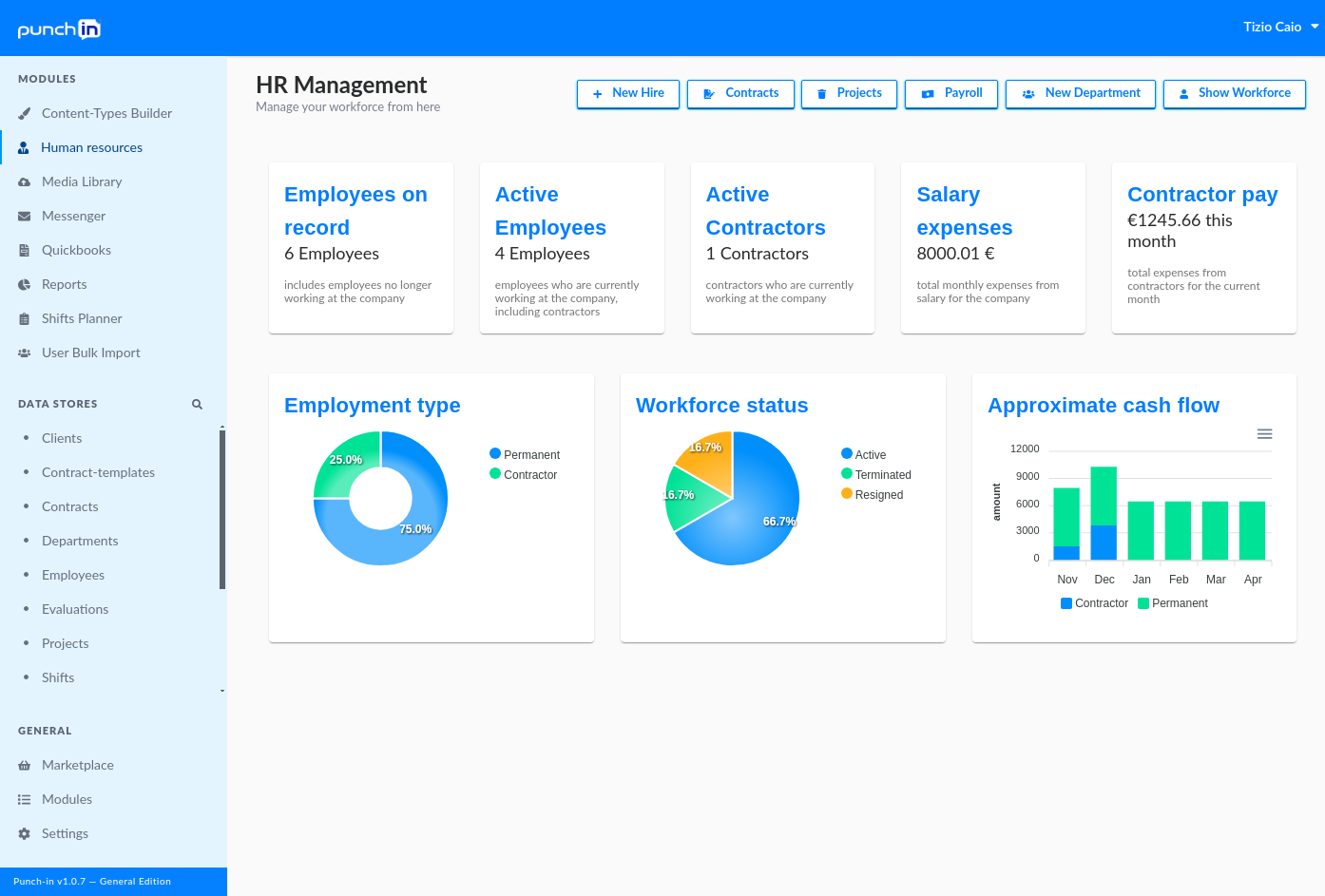
Once your employees exist, look around: shifts, projects and clients, timesheets, reports, and the documents and roll call features all work as they do in a paid environment.
3Look at the employee portal
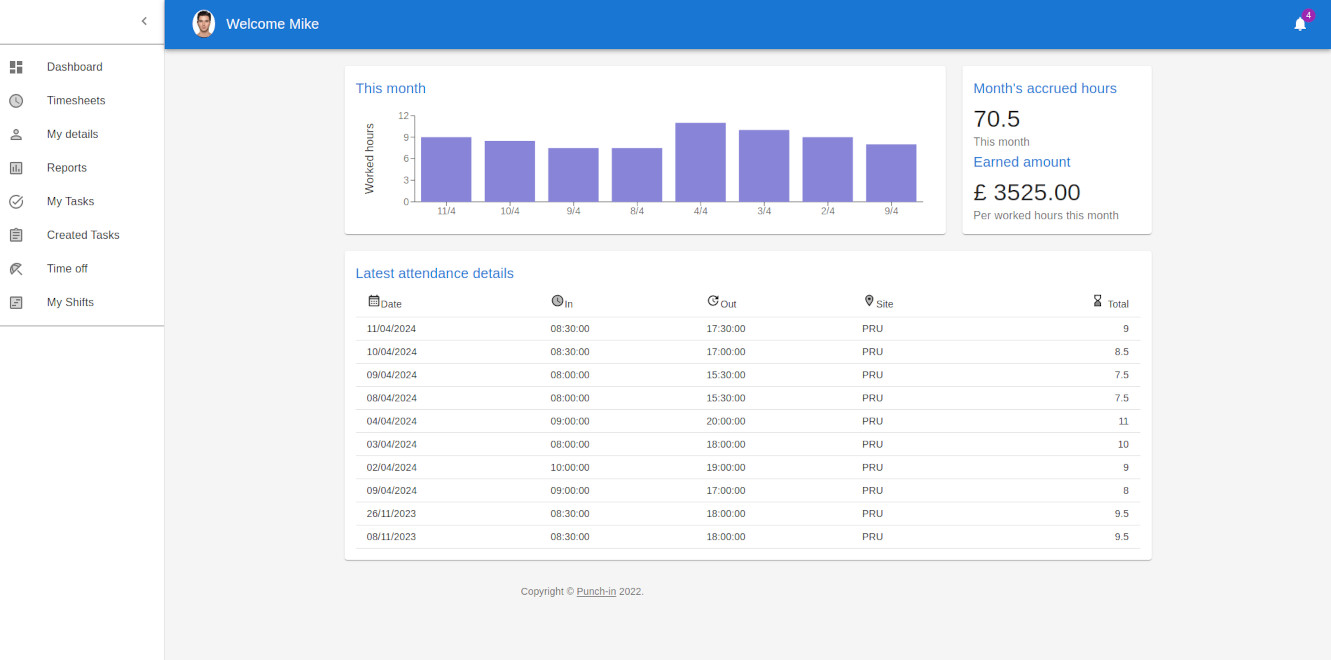
Open the employee self-service portal to see what your staff will use day to day: their time sheets, time-off requests, tasks and shifts. Managers use the same portal to approve timesheets.
4Install the Android app and clock in
You need an Android tablet or phone. A laptop is handy too, so you can keep the back office open next to it.
- Download and open the app on your Android device: punch-in_latest.apk.
- Android will ask for permission the first time, because Punch-in isn't installed from the Play Store. Tap Settings and allow installing from this source (the wording varies by device), then go back and finish the installation.
- On your laptop, log in at punch-in.co.uk/app/profile and scroll to the middle of the page, where the QR code is.
- In the app, choose Scan QR code, point the camera at the QR code on your laptop screen and save the configuration.
- Tap Start application. The app downloads the employees you created, and then you can stand in front of the camera to clock in and out. Keep still for a few seconds and look straight at the camera.
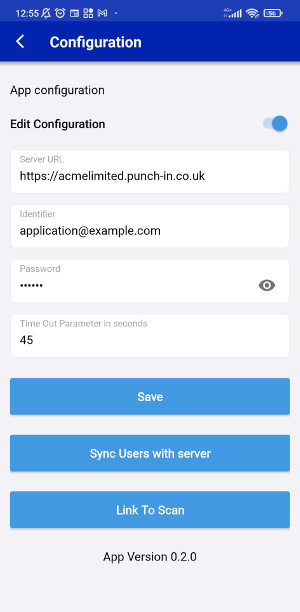
For more detail, see the mobile application documentation.
5Check the result
Go back to the back office and open the timesheets. The clock-ins you made from the app appear there within moments. Try approving a timesheet, changing a shift, or exporting a report.
Need a hand? The full guides are in the back office and employee portal documentation.
Prefer a guided walkthrough?
We will show you around using your own business case, with no commitment.