Mobile application documentation
This section will explain how to use Punch-in mobile application.
Download the Punch-in Android application and install it on every device you intend to use for face recognition. If you'd like to try our latest improvements ahead of general release, you can instead download the nightly build — as with any early build, you may occasionally run into device-specific quirks, so we'd recommend the standard app above for production devices.
Since Punch-in isn't distributed through the Google Play Store, Android will ask for permission before installing it the first time. When you open the downloaded file, tap Settings on the prompt that appears, enable Allow from this source(wording may vary slightly by device), then go back and finish the installation.
First-time execution
When launching Punch-in Android application, you will be prompted to enter your credentials:
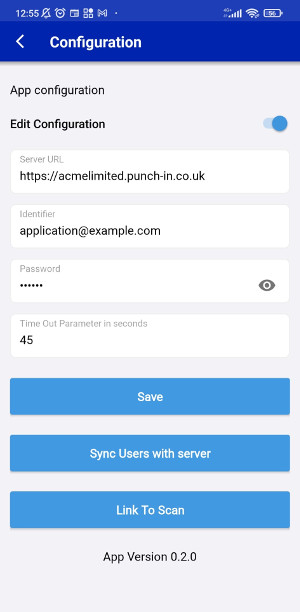
This information will be contained in the e-mail you received right after your payment has been successfully processed. You can use the QR code for a quicker configuration (button Scan QR code or Link to Scandepending on the version of your application). If you need to change any of the configuration settings, make sure that the Edit configuration radio button is on.
You can now start the face recognition process. From the main menu, click Start application
The application will sync up with the server, i.e. it will import all your employees images, after which you can start using it for face recognition.
Tips for optimal facial recognition: when you are in front of the application, try to keep still for a few seconds, looking straight at the camera, possibly with a passport picture expression, which should be the same as the picture that was used for your enrollment.